Availability: Version 2024 and later
An analysis template lets you reuse the same measurement and annotation objects and Temperature Scale settings on multiple infrared images. This is useful when images require a consistent analysis or when a report template expects specific objects.
Each folder can have one selected analysis template. The template can come from the focused image, a report template, or the default analysis template. Selecting a template does not apply it automatically.
Template contents
An analysis template includes:
·All measurement and annotation objects, including their labels, measurement parameters, and other object settings
·Temperature range, palette, isotherm, and other Temperature Scale settings
Note: An analysis template does not change the image temperature-calculation parameters, such as emissivity and reflected temperature. See Changing properties for multiple images to apply image properties to multiple images. |
Select an analysis template
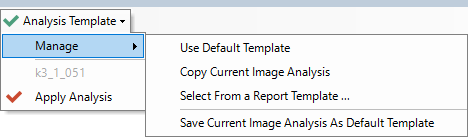
Use the Analysis Template menu on the analysis toolbar. A green check mark indicates that a template is available. The menu also shows the current template source.
Copy the focused image's analysis
Use this method to create a folder-specific template from an analyzed image.
1.Focus the image whose analysis you want to copy.
2.Open the Analysis Template menu.
3.Select Manage > Copy Current Image Analysis.
Use analysis from a report template
1.Open the Analysis Template menu.
2.Select Manage > Select From a Report Template ....
3.Select the report template that contains the required analysis.
4.Click Select.
Use the default analysis template
1.Open the Analysis Template menu.
2.Select Manage > Use Default Template.
Apply the selected template
Caution: Applying an analysis template replaces all analysis objects and Temperature Scale settings on the focused image. Use Undo to restore the previous analysis. |
1.Focus the image to which you want to apply the template.
2.Open the Analysis Template menu.
3.Select Apply Analysis.
Move or resize the inserted objects as needed for the image.
Create or replace the default template
Save the focused image's analysis as the default template when you want to reuse it in other folders.
1.Focus an image that contains the analysis objects to save.
2.Open the Analysis Template menu.
3.Select Manage > Save Current Image Analysis As Default Template.
The saved analysis replaces the previous default template and becomes the selected template for the current folder.