Use the Dual layout in Organizer mode to link visual images to their corresponding infrared images by drag and drop. This layout displays the same folder in two panes: infrared images on the left, and visual images and other files on the right.
To link a visual image to an infrared image: 1.Switch to Organizer mode. 2.If the images are in different folders, copy the visual image into the folder that contains the infrared image. 3.Open the folder that contains both images. 4.Open the Layouts menu. 5.Select Dual. 6.Drag the visual image thumbnail from the right pane onto the corresponding infrared image thumbnail in the left pane, keeping the left mouse button pressed. Preview shows the images as a linked pair while you hold the visual image over the target. 7.Release the mouse button over the infrared image thumbnail to complete the link. |
|
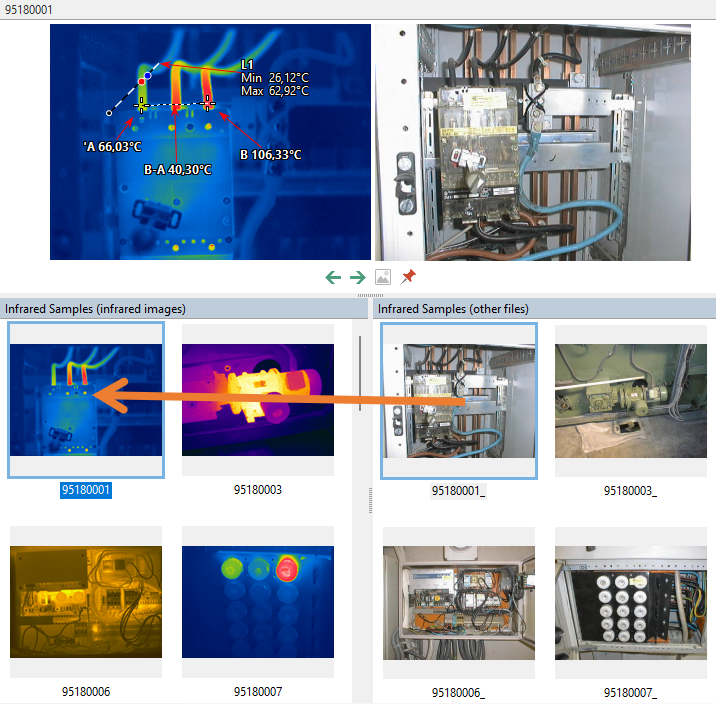
Note: Drag the visual image onto the infrared image; the reverse direction is not supported. Dragging between the two panes uses a move operation by default. To link a copy and keep the original visual image file, hold Ctrl while dragging and release the mouse button before releasing Ctrl. |