Availability: version 2024
Use Temp. Scale for Selection to apply temperature range or palette settings to several infrared images at once. The command appears in the context menu when at least two infrared images are selected and your license supports it.
This command changes the selected images' individual settings without changing the other images in the folder. For example, use it to give a group of inspection images the same custom temperature limits.
Use Temp. Scale for Selection only when the settings you want to change are not shared by the whole folder - Same Range or Same Palette settings are cleared.
Check the sharing options first
A folder-wide setting cannot be overridden for selected images in this dialog. The two sharing options restrict the controls independently:
Same Range |
Same Palette |
What you can change for the selection |
Cleared |
Cleared |
Both range and palette settings |
Selected |
Cleared |
Palette settings only; range controls are disabled |
Cleared |
Selected |
Range settings only; palette controls are disabled |
Selected |
Selected |
Neither; OK is disabled |
The dialog displays a message when sharing prevents changes.
To apply settings to selected images
1.In the Folder Contents Select the infrared images you want to change.
2.Right-click one of the selected images.
3.Select Temp. Scale for Selection.
4.Adjust the available settings as described below.
5.Click OK to apply the settings to the selected images.
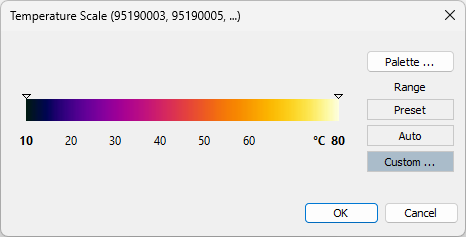
The dialog title identifies the selected images. If their settings differ, the dialog may initially show no common palette or range mode. Choose a setting explicitly when you want to apply it to the selection.
Range and palette choices
For the range, select Preset, Auto, or Custom. Preset and Auto use each image's own stored or calculated limits. Use Custom to give the selected images identical upper and lower limits.
For the palette, click Palette to choose colors and the available palette options. Applying palette settings also applies color inversion, color steps, top and bottom isotherms and their custom colors, and the contrast-enhancement method where available.
For instructions on the individual controls, see Selecting temperature span and palette and Isotherms. For folder-wide settings, see Same Range and Same Palette options.