The Notations Briefcase stores reusable notations sets. Keep separate sets for different inspection types, equipment, or clients, and link each image folder to the set it needs.
Open the Notations Briefcase
1.Open the Tools menu.
2.Select Notations Briefcase.
Browse the sets
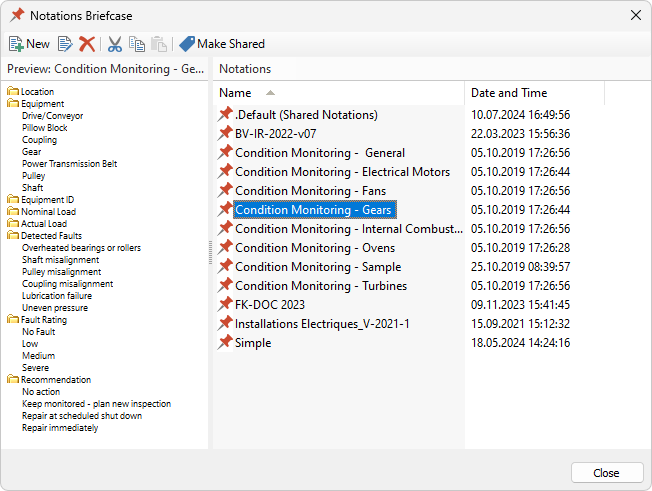
Select a set in the right pane to preview its contents on the left:
·Notations: The right pane lists the available sets.
·Preview: The left pane shows the categories and entries in the selected set.
Create a set
1.Click New on the toolbar.
2.Enter a unique name in the New Notations dialog.
3.Click OK to open the editor.
4.Add categories, entries, and any default selections or comments.
5.Click OK in the editor to save the set.
For editor instructions, see Creating a notations set.
Edit a set
1.Select the set in the right pane.
2.Click the edit button on the toolbar.
3.Make your changes in the editor.
4.Click OK to save them.
Important: Editing a set affects every folder linked to it. Editing the shared set also affects folders that inherit it. To keep changes separate, create or copy a set and link the appropriate folders to that set. |
Use a set for images
Creating, copying, or selecting a set in the briefcase does not assign it to the current image folder. To link a set to a folder, use Notations Set in the image's notations window, as described in Assigning notations to images. When the briefcase opens for this purpose, select a set and click Assign.
To use a set as the shared default instead, select it and click Make Shared on the toolbar. This changes the default for folders that inherit shared notations; it does not replace sets linked separately to other folders. See Shared notations.
Copy or move sets
The clipboard commands in the briefcase operate on entire notations-set files, not on individual entries or image selections.
To copy a set into the briefcase:
1.Copy the notations-set file from its source folder.
2.Open the Notations Briefcase.
3.Click the paste button on the toolbar.
To copy a set out, select it in the right pane, click the copy button, and paste the file into the destination folder. Use cut instead of copy only when you want to move the file; the move completes when you paste.
You can also transfer set files by drag and drop. Make sure the operation copies or moves the files as intended. Before moving or deleting a set, check whether it is shared or linked to image folders.
Toolbar buttons
The toolbar provides these commands:
|
Create a notations set. |
|
Open the selected notations set for editing. |
|
Delete the selected notations set file. |
|
Cut the selected notations set file to the clipboard. Pasting moves it to the destination. |
|
Copy the selected notations set file to the clipboard. Pasting creates a copy at the destination. |
|
Paste copied or cut notations set files into the briefcase. |
|
Use the selected notations set as the shared default. |


