The Template Selection dialog opens when you start generating a report for an image, a selection, or a folder. Use it to choose the report layout and start report generation.
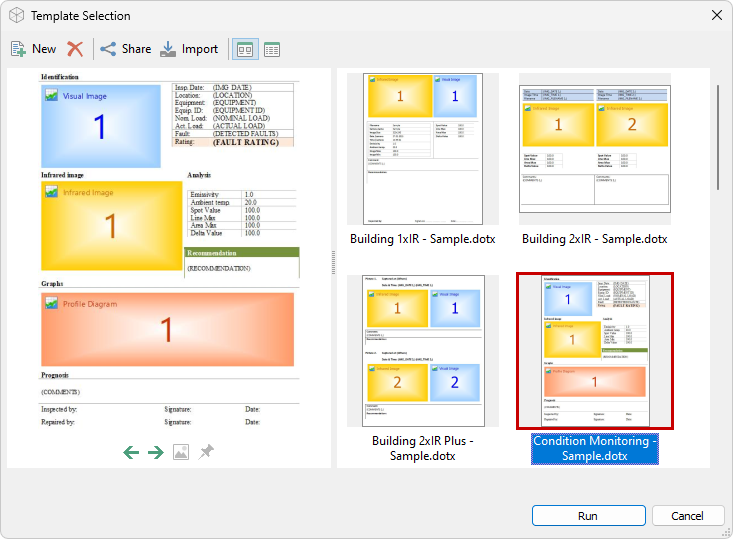
Template list and preview
The template list is on the right. Select a template to display its layout in the preview pane on the left. Colored placeholders show the locations and types of report content, such as infrared images, visual images, profiles, and data tables. See Report template structure.
When the current folder has local or inherited templates, tabs below the list let you filter the available templates:
·All Templates: Shows the applicable local, inherited, and shared templates in one list. Inherited templates come from parent folders. You cannot modify templates directly in this view.
·Only Local: Shows templates stored for the current folder. These templates are also available in its subfolders.
·Only Shared: Shows templates available to all folders on this computer.
Toolbar

Use the toolbar to create, delete, share, or import templates and to display the list as thumbnails or details. To modify templates directly, switch to the Only Local or Only Shared view. See Managing report templates for instructions.
Select a template and generate the report
1.If template tabs are displayed, select the required view.
2.Select a template in the list.
3.Review the template in the preview pane.
4.To report images in subfolders, select Include images from subfolders if the check box is available.
5.Select Run.
The Report Generator dialog opens and shows the report-generation progress.