Store the notations set in the report template. The same template can then provide the set used to annotate the infrared images and define the notation categories used in the report. This keeps image annotations consistent with the template's fields, tables, and formulas.
Store notations in a report template
Define the notations before adding report elements that use individual notation categories.
1.Open the report template in Word.
2.On the Thermo Reports tab, select Notations > Edit Notations.
3.Define the required categories, entries, and default selections in the Notations Editor.
4.Select OK.
5.Save the report template.
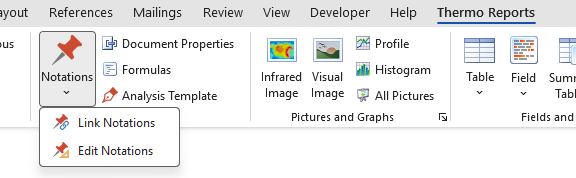
For instructions on using the editor, see Creating a notations set. The notations set is stored in the template and is also included in reports generated from it.
Use the template notations for image annotations
Before annotating images, link their folder to the notations stored in the report template. In the folder's notations settings, select From a Report Template and choose the template. See Choose the folder's notations set.
The template categories and entries then become available to every image in the folder. Each image keeps its own selections and comments. When you generate a report with the same template, its notation fields and tables use the categories that were available during annotation.
Use notation categories in report elements
The stored categories appear in the Notations group when you configure report fields, report tables, summary tables, or formulas. Use these elements to show selected categories or control the placement and formatting of each value.
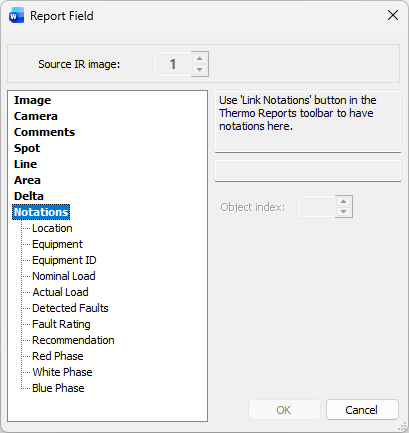
Insert a Notations table
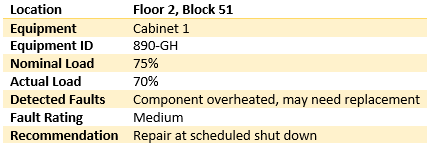
A Notations table reads annotations directly from an infrared image. It includes all notation categories supplied by the image, their assigned values, and optionally its comments. The table does not depend on the notations set stored in the template.
1.Place the cursor in the report data section where you want the table.
2.On the Thermo Reports tab, select Table > Notations.
3.Set Source IR image when the section contains multiple infrared-image placeholders.
4.Select Show Comments to include comments when they are available.
5.Select OK.
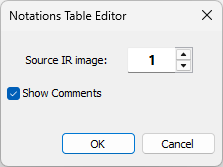
In a report template, the table displays sample rows until report generation supplies image data. The generated table can appear as follows:
Double-click an existing Notations table to change its Source IR image or Show Comments setting.
Import an existing Notations Briefcase set
The Notations Briefcase workflow remains available for backward compatibility with existing notations sets. For new report templates, creating and maintaining the notations in the template is recommended.
1.On the Thermo Reports tab, select Notations > Link Notations.
2.Select the existing set in the Notations Briefcase dialog.
3.Select Assign.
4.Save the report template.
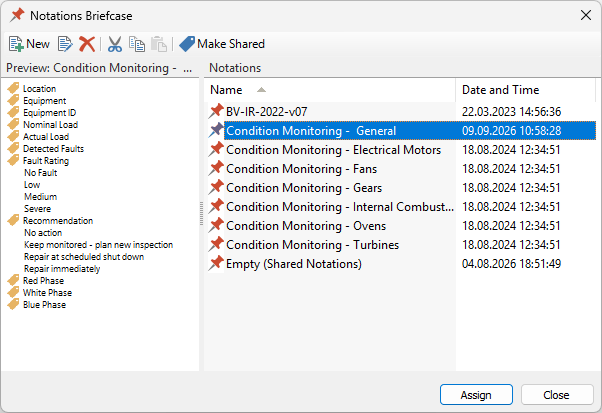
The command copies the set definition into the template; it does not create a live link to the Briefcase version. Later changes to the Briefcase set are not applied automatically. Select Notations > Link Notations again to import the updated definition, or select Notations > Edit Notations to edit the template's copy. For information about existing Briefcase sets, see Notations briefcase.