Use drag and drop in Organizer mode to copy or move files and folders. Drag items from Folder Contents onto a destination folder in the Folders window or onto another folder displayed in Folder Contents.
Choose whether to copy or move
When you drag with the left mouse button, the default action depends on the destination:
§Dragging to a folder on the same drive moves the items.
§Dragging to a different drive copies the items.
To override the default action, hold down Ctrl while dragging to copy, or Shift to move. Keep the key held down until you release the mouse button.
To copy or move files or folders: 1.Switch to Organizer mode. 2.Open the folder that contains the items. 3.Select the files or folders to copy or move. 4.Make the destination folder visible. 5. 6.Release the mouse button when the destination folder is highlighted. |
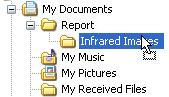
If the destination is outside IRT Cronista, resize the application window as needed to make the destination visible before dragging.
This pointer  indicates that the current location cannot accept the dragged items.
Choose an action from the drop menu
Drag with the right mouse button to choose the action after dragging:
1.Drag the selected files or folders onto the destination folder with the right mouse button.
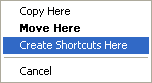
2.Release the mouse button to open the menu.
3.Select Copy Here, Move Here, or Create Shortcuts Here.
To link a visual image to an infrared image rather than transfer files to another folder, see Linking images by drag and drop.