Use View Adjustments in Analyzer mode to choose which infrared images appear, show or hide related information, and configure automatic zoom. Changes take effect immediately.
Open View Adjustments
Click  on the analysis toolbar, or select View > Adjust View.
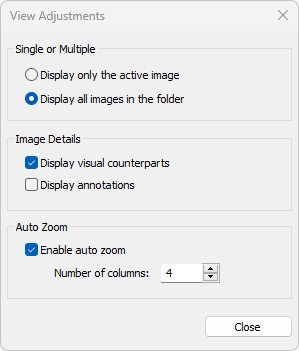
Choose which images to display
·Display only the active image: Displays only the focused image, or the focused image stack, in the analysis area. In this option, active image means the focused image.
·Display all images in the folder: Displays the current folder's infrared images in a scrollable grid. This option is available in Professional and Ultimate editions.
See Single- and multi-image analysis.
Show image details
·Display visual counterparts: Shows linked visual images beside their infrared images.
·Display annotations: Shows comments and notation entries configured for preview beside their infrared images.
Configure automatic zoom
·Enable auto zoom: Adjusts the zoom when the available analysis area changes. In single-image analysis, the image fits the analysis area. In multi-image analysis, images are sized for the specified number of columns.
·Number of columns: Sets the number of columns in multi-image analysis when automatic zoom is enabled.
Clear Enable auto zoom to control the zoom manually. See Zooming images.