Use layouts in Organizer mode to arrange the Preview, Infoview, and Folder Contents windows. The available layouts are Standard, Filmstrip, and Dual.
Select a layout and orientation
To select a layout:
1.Open the Layouts menu.
2.Select Standard, Filmstrip, or Dual.
To change the orientation:
1.Open the Layouts menu.
2.Select Vertical Layout or Horizontal Layout.
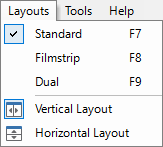
You can also use these keyboard shortcuts:
·F7: Selects the Standard layout.
·F8: Selects the Filmstrip layout.
·F9: Selects the Dual layout.
Layouts do not reposition the Folders Tree or Temperature Scale windows. Show, hide, or resize those windows separately.
Standard layout
Standard is the default layout. In Vertical Layout, Preview and Infoview appear on the left, and Folder Contents appears on the right.
|
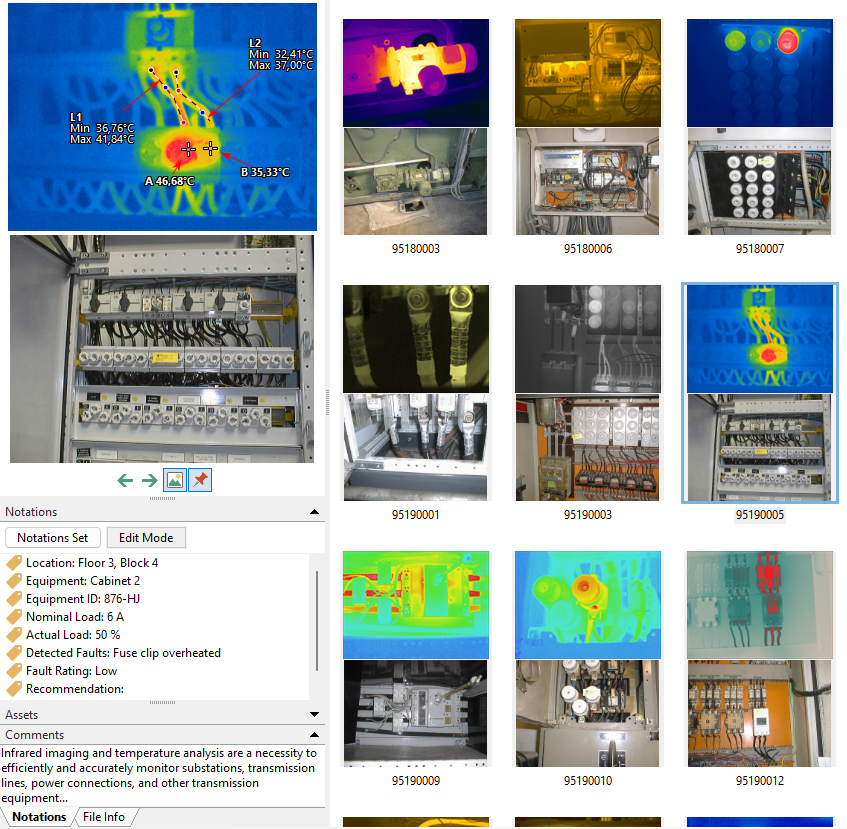
In Horizontal Layout, Preview appears above Folder Contents.
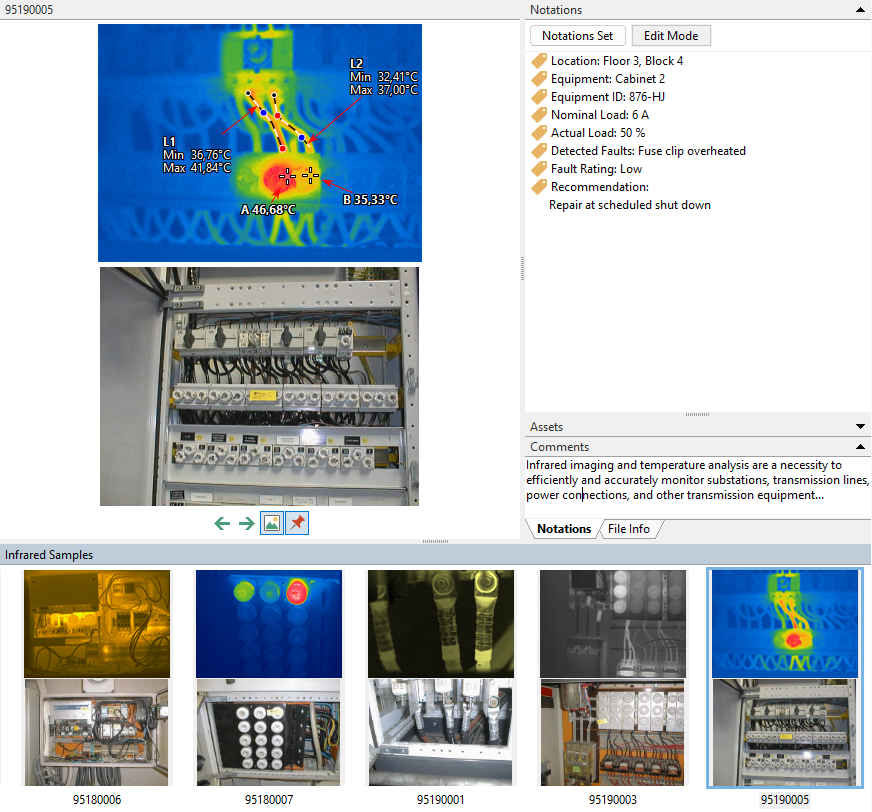
Filmstrip displays a large preview above a single row of thumbnails. Click a thumbnail to give that image focus. Use the left and right arrow buttons below Preview to move to the previous or next image.
|
Dual layout
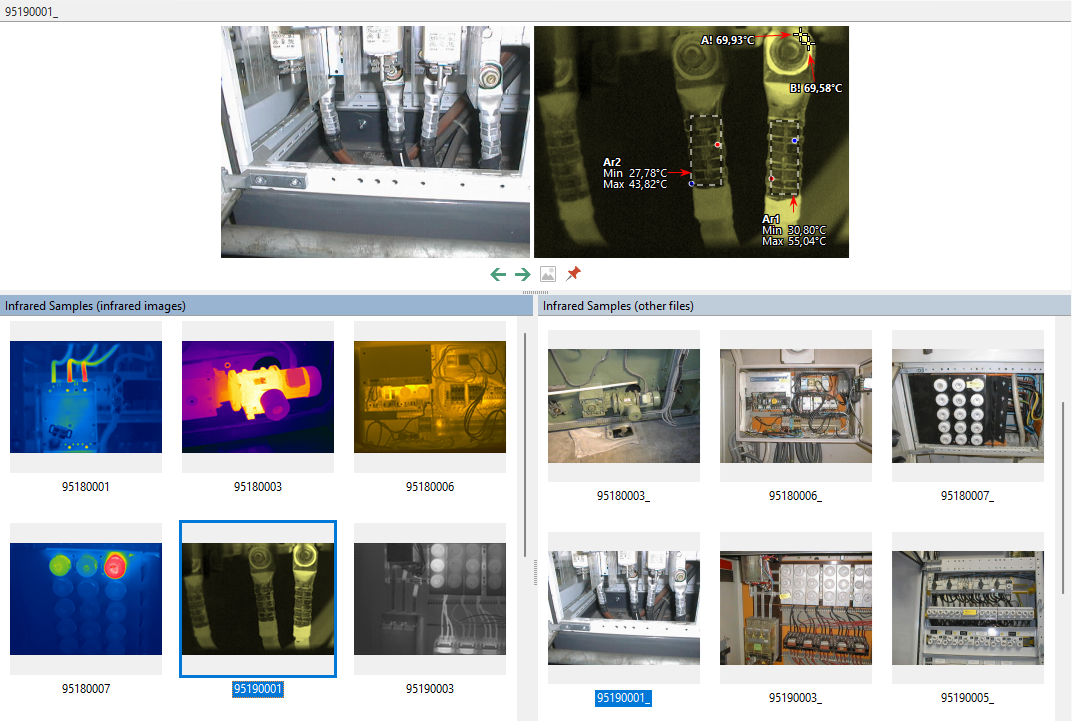
Dual displays the same folder in two Folder Contents windows. The left window contains infrared images, and the right window contains visual images and other files. Use this layout to link images by drag and drop.
|
See also Hiding and resizing windows.