Folder notations provide a local notations set for images in a folder and subfolders that inherit from it. Use them when you want to keep a set with its images or customize the available categories and entries for one part of your folder tree.
Note: For most tasks, Shared notations or a set linked from the Notations briefcase is sufficient. Folder notations offer an additional way to organize sets locally. |
Create or edit folder notations
The Notations for Folder command creates a local set or opens the existing one. It also removes the folder's link to a set in the Notations Briefcase or a report template; it does not copy that linked set.
1.Switch to Organizer mode.
2.Open the folder that will use the notations.
3.Select File > New > Notations for Folder to open the editor.
4.Define or edit the categories, entries, and defaults as described in Creating a notations set.
5.Set the Inherit notations check box as described under Notations inheritance below.
6.Click OK to save the set.
The local set appears as Folder Notations in the folder:

Start with a copy of an existing set
To create an independent local copy, use a destination folder without an existing notations-set file. If the folder already has a local set, edit that set instead. Pasting another set file does not combine the two sets.
1.Open the destination folder in Organizer mode.
2.Select Tools > Notations Briefcase.
3.Select the required set in the right pane.
4.Click the copy button on the briefcase toolbar.
5.Click Close to return to the image folder.
6.Right-click an empty area of Folder Contents.
7.Select Paste.
The original set remains in the briefcase. Editing the local copy does not change the original, and later changes to the original do not update the copy. If the folder still uses a linked set, switch to folder notations as described below.
Switch from a linked set to folder notations
A set linked from the Notations Briefcase or a report template takes precedence over the folder's local file. To use the local set instead:
1.Click an image in the folder.
2.Click Notations Set at the top of the image's Notations window.
3.Click Select Notations.
4.Select Reset to Default.
5.Click OK.
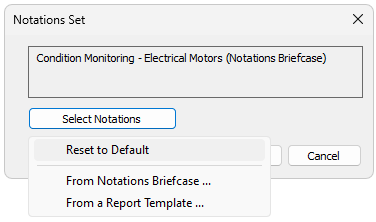
This removes the link without deleting the source set. The folder uses its local set, if present, and any inherited notations allowed by its inheritance settings. Reset to Default is unavailable when the folder already uses the default.
Notations inheritance
Inheritance makes notations from a parent folder available in its subfolders. A parent can supply its own local set or a linked set. Shared notations provide the default when inheritance continues up the folder tree without another source replacing them.
In the Notations Editor, use the Inherit notations check box to control how the local set works:
·Select it to combine the folder's own notations with inherited notations.
·Clear it to use only the folder's own notations.
Changes to folder notations affect the images in that folder and any subfolders that inherit them. Subfolders can use their own settings to change or stop inheritance. Changes do not affect unrelated folders or the original of a copied set.
The set defines the available entries and defaults; each image can still use a different selection. For example, a parent folder can provide common categories while subfolders add entries specific to their images.