A report generated by IRT Cronista is a standard Word document. Use Word to edit ordinary text, add comments, and change the document formatting or layout.
Use the Thermo Reports tab to update linked thermography data, manage report sections, and edit template-based fields.

For a description of the available commands, see Thermo Reports tab.
Edit document properties
If the report uses document properties, the Document Properties dialog opens when report generation is complete. Enter the requested values and select OK. The report displays these values in the fields defined by the template.
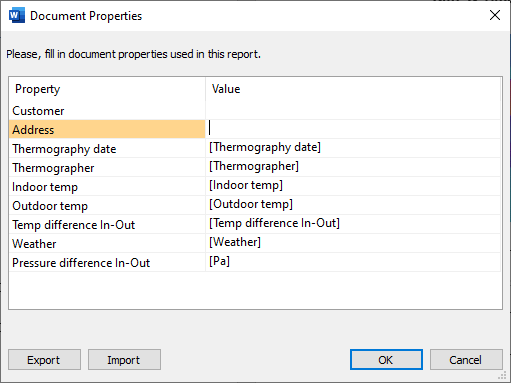
To revise these values later, select Document Properties in the Template Data group on the Thermo Reports tab.
Update a report section from IRT Cronista
Each populated report section remains linked to its source infrared image. Use this link to correct the source image or its analysis and update all related content in the section.
1.Click anywhere in the report section that you want to update.
2.Select Browse for Images  on the Thermo Reports tab.
3.Modify the infrared image or its analysis in IRT Cronista.
4.Select Apply to Report on the Switch to Report toolbar  .
.
If a section contains more than one infrared image, select the image or related report item that you want to update before selecting Browse for Images.
IRT Cronista normally opens the linked source image. If the image cannot be found, locate it manually. To replace the image used by the section, open a different infrared image before selecting Apply to Report.
Note: Select Cancel on the Switch to Report toolbar to return to Word without updating the report. This does not undo changes already saved to the source image. |
Edit an infrared image directly in the report
Double-click an infrared image in the report to open the in-place editor. The linked source image must be available.
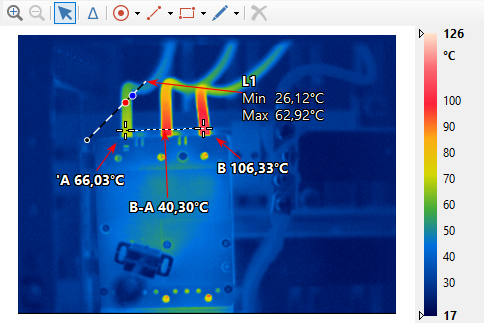
Use the editor to add or modify measurement objects, calculate temperature differences, and change analysis settings. Right-click the temperature scale to change the range or palette.
Click outside the editor to save the changes to the source image and update the infrared image and related report elements.
Press Esc to close the editor without applying the in-place changes.
Add an infrared image
Duplicate an existing report section to preserve its layout when you add another infrared image.
1.Click anywhere in the report section whose layout you want to copy.
2.Select Duplicate  in the Report Sections group.
3.Select the Infrared Image placeholder in the new section.
4.Select Browse for Images on the Thermo Reports tab.
5.Open the required infrared image in IRT Cronista.
6.Make any required analysis changes.
7.Select Apply to Report on the Switch to Report toolbar.
The Duplicate command inserts a cleared copy immediately after the current section and moves the cursor to the new section.
Remove a report section
1.Click anywhere in the report section that you want to remove.
2.Select Delete Section  in the Report Sections group.
This removes the complete section and its report content. It does not delete the source infrared image.