Use isotherms to highlight temperatures above or below a threshold, or within a selected interval. For example, a red isotherm on a grayscale image can make hot areas easier to identify. Isotherms change the image colors, not the measured temperatures.
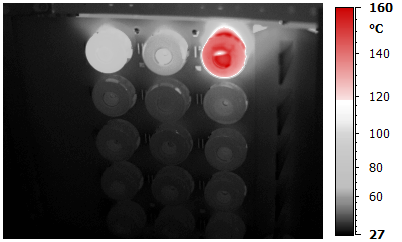
Adjust isotherms on the scale
In IRT Cronista, use the Temperature Scale window to adjust isotherms for the focused infrared image. Small triangular markers beside the color bar indicate the isotherm limits.
Clear the Same Palette check box if you want to change only the focused image. When this option is selected, isotherm settings are shared with the other infrared images in the folder.
|
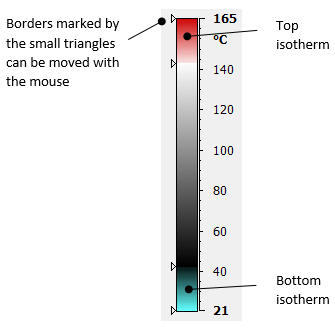
Drag a boundary marker to change a limit. Drag within an isotherm band to move the highlighted interval along the scale. To enter exact temperatures, use the Isotherms dialog described below.
|
|
An interval isotherm highlights temperatures between two limits. |
Examples of top and bottom isotherm combinations. |
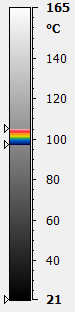
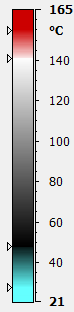
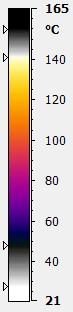
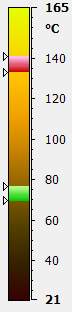
Note: Each palette provides default isotherm colors. If your license supports custom palette colors, you can change the isotherm colors without changing the image palette. See Custom isotherm colors below. |
Set exact isotherm limits
The Isotherms dialog provides separate controls for Top isotherm and Bottom isotherm. You can enable either or both.
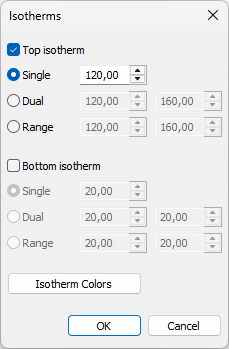
·Single: Uses one threshold. The top isotherm highlights temperatures above it; the bottom isotherm highlights temperatures below it.
·Dual: Uses two thresholds. The top isotherm highlights temperatures above the lower threshold, with a second color band above the upper threshold. The bottom isotherm highlights temperatures below the upper threshold, with a second color band below the lower threshold.
·Range: Highlights only the interval between two limits.
To set an isotherm:
1.Right-click the color bar in the Temperature Scale window.
2.Select Isotherms.
3.Select the Top isotherm or Bottom isotherm check box.
4.Select Single, Dual, or Range.
5.Enter the threshold temperature or the two limits beside the selected option.
6.Click OK.
To turn an isotherm off, clear its check box in this dialog. Click OK to apply the change.
Custom isotherm colors
Availability: version 2024
Use Isotherm Colors to choose colors for the focused image. The button appears only when your license supports custom palette colors and is enabled when at least one isotherm check box is selected.
Select the image palette before customizing its isotherm colors. Choosing another palette in the Palette dialog loads the saved isotherm color defaults for that palette.
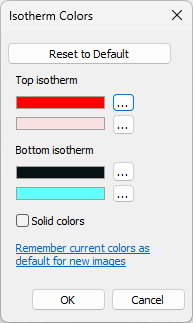
To change a color:
1.Open the Isotherms dialog.
2.If neither isotherm is enabled, select the Top isotherm or Bottom isotherm check box.
3.Click Isotherm Colors.
4.Click the ... button beside the color swatch you want to change.
5.Choose a color in the color picker.
6.Click OK in the color picker.
7.Click OK in Isotherm Colors.
8.Click OK in Isotherms.
Each isotherm has two color swatches for its color transition and bands. You can change each swatch independently. For a custom gradient in Range mode, set both colors. Some palettes use a built-in color palette for interval isotherms instead.
Select Solid colors to use uniform, semi-transparent fills for the isotherm bands instead of gradients. In Range mode, the top interval uses the upper swatch under Top isotherm, and the bottom interval uses the lower swatch under Bottom isotherm. This option also replaces a built-in interval palette with a single color.
Reset colors and save defaults
Click Reset to Default in Isotherm Colors to restore the saved default colors and Solid colors setting for the current palette. These are your saved defaults, not necessarily the palette's factory colors. The button is disabled when the current settings already match the defaults.
To reuse the current colors for new images:
1.Click Remember current colors as default for new images in Isotherm Colors.
2.Click OK in the confirmation message.
The link appears when the current settings differ from the saved defaults. The confirmed settings become the defaults for new images using that palette. They are saved immediately; canceling either dialog afterward does not undo the saved defaults.
You can also edit defaults through Tools > Settings > Customize isotherm colors. In that dialog, select the Palette whose defaults you want to change.