Use formulas to calculate or format report data from image, measurement-object, and notation fields. A formula becomes a report field that you can insert in a document, table, or summary table.
For example, formulas can:
·Calculate a temperature difference or another value from measurements.
·Convert a calculated result to descriptive text, such as a fault rating.
·Make a formula result bold or change its color when a condition is met.
Formulas are stored in the current Word document. Define them in a report template when generated reports should use the same calculations and formatting.
Create a formula
1.Open the report or report template in Word.
2.On the Thermo Reports tab, select Formulas.
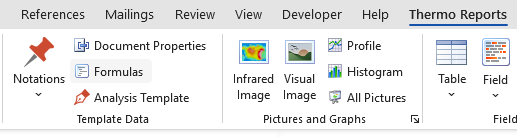
The Formulas dialog lists the formulas stored in the document. Use Edit to change the selected formula or Delete to remove it.
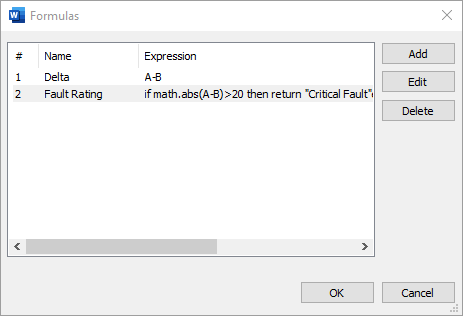
3.Select Add.
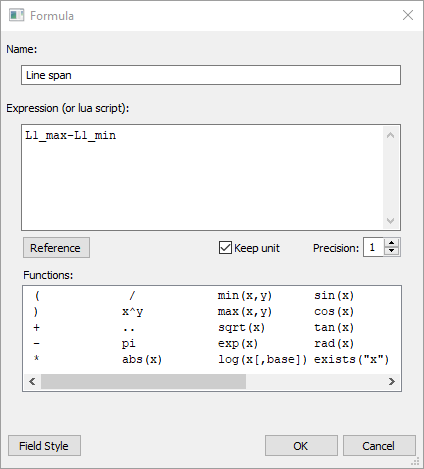
4.Enter a unique, descriptive formula name.
5.Enter the calculation or script in the Expression (or lua script) box.
6.Select Reference to insert each report field that the formula uses.
7.For a numeric result, set Keep unit as required.
8.Set Precision as required.
9.Select OK.
10.In the Formulas dialog, select OK to save the formula and update formula fields in the document.
Note: Use Reference instead of typing field references. A formula can reference standard report fields and notation fields, but it cannot reference another formula. To make notation fields available, add the notations to the report template as described in Notations in reports. |
Write expressions
For a simple calculation, enter a single expression. For example, the following expression subtracts the value of spot B from the value of spot A:
A-B
Double-click an item in the Functions list to insert its operator or function. The description below the list explains the selected item. Mathematical functions use the math. prefix; for example:
math.abs(A-B)
Units and precision
For a numeric result, Precision sets the number of digits after the decimal point. Select Keep unit to append the unit supplied by a referenced numeric field. Use fields with compatible units in the same calculation.
To return a different unit, clear Keep unit and append the unit as text with the concatenation operator ... For example, this expression converts a Celsius value in A to Kelvin and appends the unit:
A+273.15 .." K"
Concatenation returns text. Therefore, Precision does not format this result.
Text and conditional results
Put literal text in quotation marks. Use .. to combine text with a text field. For example:
"<<"..FAULT_RATING..">>"
For branching logic, enter a Lua script that returns the required result. For example:
if math.abs(A-B)>20 then return "Critical Fault"
elseif math.abs(A-B)>10 then return "Possible Fault"
else return "No fault"
end
Insert a formula field
After creating a formula, insert it wherever a report field is supported. On the Thermo Reports tab, select Field, and then select the formula in the Formulas group. You can also select formula fields when configuring report tables and summary tables. For general field instructions, see Add fields.
Apply conditional formatting
A formula field can become bold, change color, or do both when a condition is true. The formatting also applies when the formula is used in a report table or summary table.
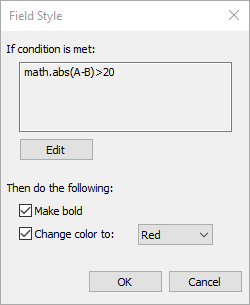
The following example creates a formula that displays the Fault Rating notation and changes the result to bold red text when the temperature difference between spots A and B exceeds 20 in the current temperature unit.
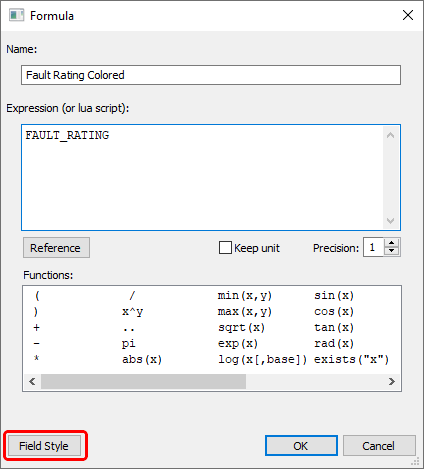
1.Create or edit the formula that returns the value to display.
2.Select Field Style.
3.In the Field Style dialog, select Edit.
4.Enter a condition that returns true when the formatting should apply.
5.Select OK.
6.Select Make bold if the result should become bold.
7.Select Change color to if the result should change color.
8.Select the required color.
9.Select OK.
Note: You do not need a formula when a notation field should always use the style defined in its notations set. See Notations in reports. |