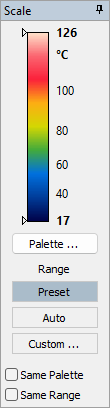
Use the Temperature Scale window to view and adjust how temperatures map to colors in infrared images. The window is titled Scale and appears on the right side of Organizer mode by default.
Note: The Temperature Scale window is available in both Organizer and Analyzer modes and works the same way in both modes. |
The color bar shows the current palette. The values at its ends show the upper and lower limits of the displayed temperature range, and the unit indicates Celsius, Fahrenheit, or Kelvin.
Use Palette to select the colors. Under Range, select Preset to use the camera's stored range, Auto to calculate the range automatically, or Custom to specify the limits. Changing the range or palette changes the image display, not the measured temperatures.
The Same Range and Same Palette check boxes apply the selected range mode or palette to all infrared images in the current folder. See the linked topic below for details.
Show or hide the window
1.Open the View menu.
2.Select Temperature Scale.
A check mark indicates that the window is visible. Select the command again to hide it.
You can also click the pin button  in the window's upper-right corner to auto-hide it. To keep the window visible again, use View > Temperature Scale.
Related topics
§Selecting temperature span and palette