Use the predefined layouts to arrange the Organizer mode windows. You can then resize individual windows or hide windows that are not needed for the current task.
Resize a window
1.Point to the border between two windows.
2.When the pointer becomes a two-headed arrow  , drag the border.
For example, drag the right or bottom border of Preview outward to enlarge the previewed image.
|
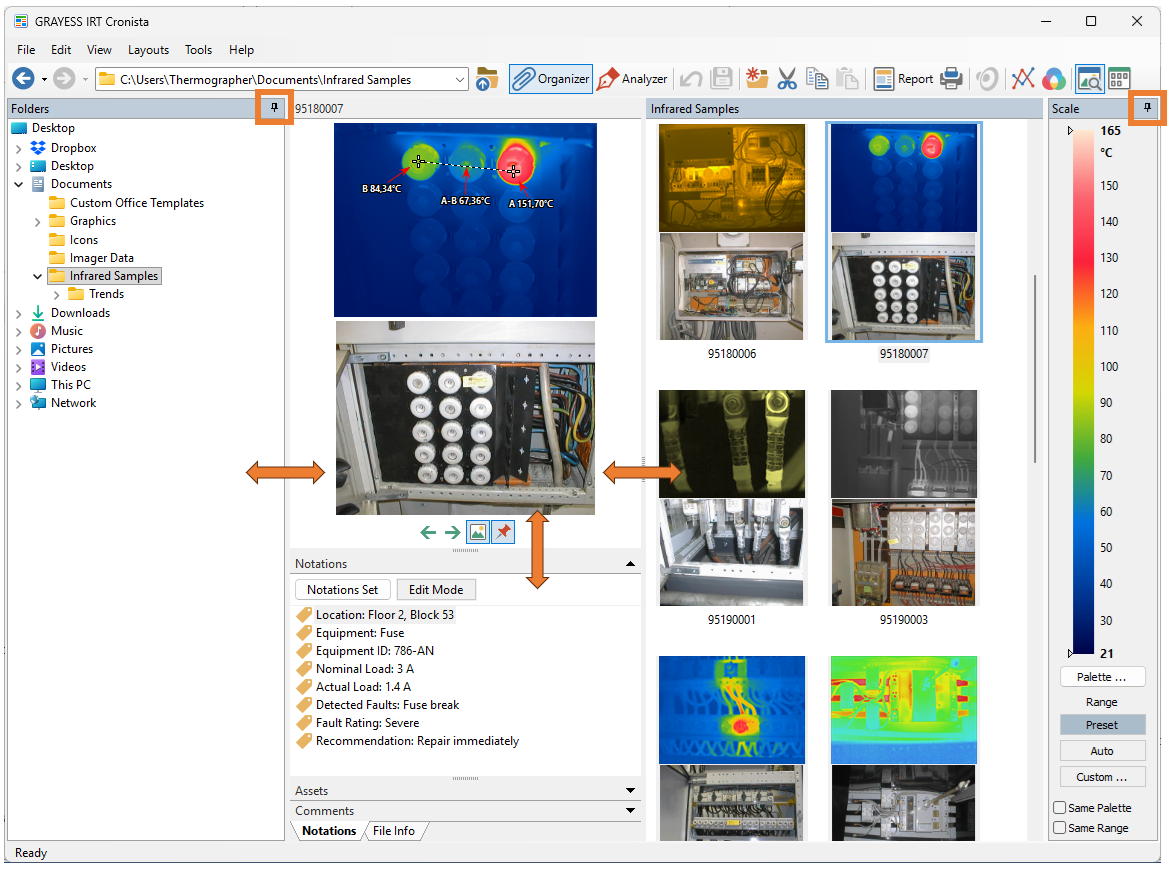
As Preview grows, the adjacent Infoview and Folder Contents windows become smaller.
Show or hide a window
Use menu View to show or hide Preview, Infoview, or Temperature Scale.
1.Select View.
2.Select the window name.
A check mark indicates that the window is visible. Select the window name again to hide it.
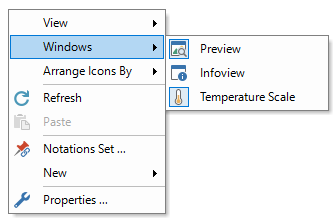
Alternatively, use the context menu:
1.Right-click a blank area in the Folder Contents window.
2.Select Windows.
3.Select the window name.