Use the Notations Editor to create categories, add reusable text entries, and choose default selections and comments for a notations set.
In IRT Cronista, each notation belongs to a category. Defining a set determines which entries are available; selecting entries for an image records the details of that inspection.
Plan the categories
Start with the information you need to record. For example:
·Location: Warsaw, Munich, New York
·Equipment: Pump starter, Motor controller, Lighting breaker
·Problem Class: No fault, Possible fault, Fault
·Problem: Circuit hot, overloaded; Temperature abnormality; Fuse clip overheated
Category types
Choose how many entries an image can use from each category:
·Single selection: Allows one selected entry, shown with an option button. Use this for mutually exclusive choices, such as Problem Class.
·Multiple selection: Allows several selected entries, shown with check boxes. Use this when more than one entry can apply, such as Problem.
Open the editor
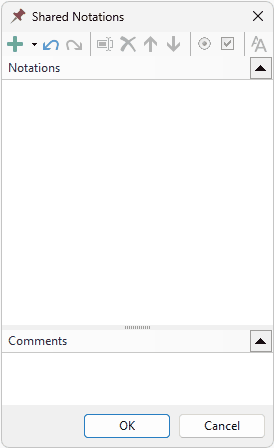
To create a reusable set, open the Notations briefcase and use its toolbar command to create a set. Enter a name in New Notations, then click OK to open the editor.
To edit the default set instead, open Shared notations. Changes to a shared or linked set affect the folders that use it.
Add categories and notations
The following steps start with an empty set. When editing an existing set, select a category or notation before using the insertion commands.
1.Click the empty notations area to create the first category. 2.Type Location as the category name. 3.Press Enter to finish editing the name. 4.Press Enter again to insert a notation in the category. 5.Type Warsaw. 6.Press Enter to finish editing the notation. 7.Repeat steps 4–6 to add Munich and New York. To add another category, finish editing the current entry, then press Shift+Enter. Type the category name and press Enter to finish it. Add its entries as described above. Repeat for Equipment, Problem, and Problem Class. While you are typing a name or entry, Enter finishes editing. When an item is selected and you are not typing, Enter inserts a notation and Shift+Enter inserts a category. |
Set category types and defaults
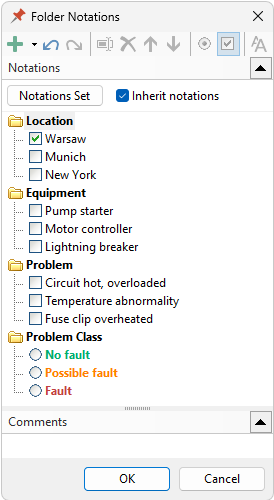
New categories allow multiple selection by default. Select a category, then click the Single selection or Multiple selection toolbar button  to change its type.
For example, use Single selection for Problem Class and Multiple selection for Problem.
To preselect an entry for images that use this set, select its check box or option button. For example, select Warsaw if it is the usual inspection location. Defaults provide starting values; review inspection-specific findings for each image.
Editor toolbar
Use the toolbar to edit the selected category or notation:
|
Insert a category or notation. Use the arrow beside Add to choose which to insert. |
|
Undo the last action. |
|
Redo the last undone action. |
|
Rename the selected category or notation. |
|
Delete the selected notation or category. Deleting a category also deletes its notations. |
|
Move the selected category or notation up. |
|
Move the selected category or notation down. |
|
Allow one selected entry in the category (option buttons). |
|
Allow several selected entries in the category (check boxes). |
|
Set the selected notation's text color and bold formatting. The style also applies to report fields. |


Notations inheritance
The Inherit notations check box controls whether the current folder inherits notations from parent folders. This option is available only for Folder Notations. See Folder notations.
Select the check box to combine the folder's own notations with inherited notations. Clear it to use only the folder's own notations.
Comments
Use the Comments field at the bottom of the editor to enter a default comment for images that use this set. You can edit the comment for an individual image later.
Save changes
Click OK to save the set.
To use a new set for the images in a folder, link it to that folder as described in Assigning notations to images. Creating a set in the briefcase does not assign it to the current image folder automatically.