You can work with supported infrared images in their original camera formats or convert them to GTSI. The main difference is how the infrared image, visual image, and analysis data are stored and managed.
Original infrared image formats
Infrared camera manufacturers use different file formats and file name extensions. An original image is a file in the format created by the camera.
Some camera formats store the infrared and visual images in separate files. When you manually link a visual image to an infrared image in one of these formats in IRT Cronista, IRT Cronista renames the visual image file to identify the link. The two images remain separate files on disk.
Other camera formats store infrared measurement data inside a JPEG file, along with a standard image preview. Some also include an embedded visual image.
For images kept in their original formats, IRT Cronista saves analysis data, such as measurement objects, temperature range settings, and the palette, in a separate file. This file has the same base file name as the infrared image and the .nxclt extension.
Saving analysis data separately keeps the original infrared image data unchanged, but creates related files that must be managed together.
View related files
To view the separate files in an image group:
1.Switch to Organizer mode.
2.Right-click the infrared image.
3.Select Grouped Items from the shortcut menu.
The dialog shows the files in the group. In this example, the group contains an infrared image, a visual image, and an analysis data file.
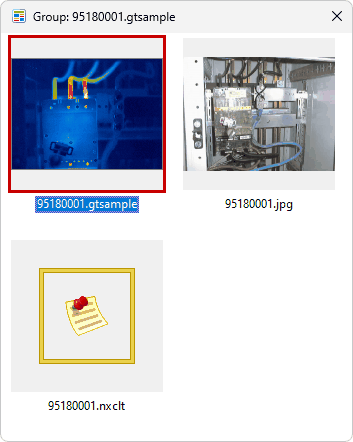
Note: Keep the infrared image and its related files together when copying or moving them outside the program. Copying only the infrared image does not include a separate visual image or analysis data file. |
GTSI analyzed image format
GTSI stores an infrared image, its linked visual image, and its analysis data in one file with the .gtsi extension. For an image already in GTSI format, IRT Cronista saves the linked visual image and analysis data within that file. You can then transfer one file instead of managing these items separately.
Linking images does not automatically convert an original camera file to GTSI. Use Convert to GTSI to change the format.
Consider the following limitations before using the GTSI format:
·GTSI is a proprietary format. Conversion stores the infrared image data and parameters supported by the software, but may not preserve all camera-specific data. Keep a backup of each image in its original format.
·Visual images are saved as JPEG, which can reduce image quality. IRT Cronista also reduces visual images that exceed the dimensions shown in the conversion dialog's warning.
Convert images to GTSI
Save converted images in a subfolder to keep the originals. The procedure below uses this option.
To convert infrared images to GTSI format: 1.Switch to Organizer mode. 2.Open the folder that contains the infrared images. 3.Select the images you want to convert. 4.Right-click one of the selected images. 5.Select Convert to GTSI. 6.Select Place converted images in a subfolder. 7.Enter a name for the subfolder. 8.Review the warning about visual image dimensions. 9.Click Convert. |
Warning: The alternative Overwrite originals option replaces the originals with GTSI files in the same folder and removes the original infrared images and their linked files. Back up the complete image groups before using this option. |