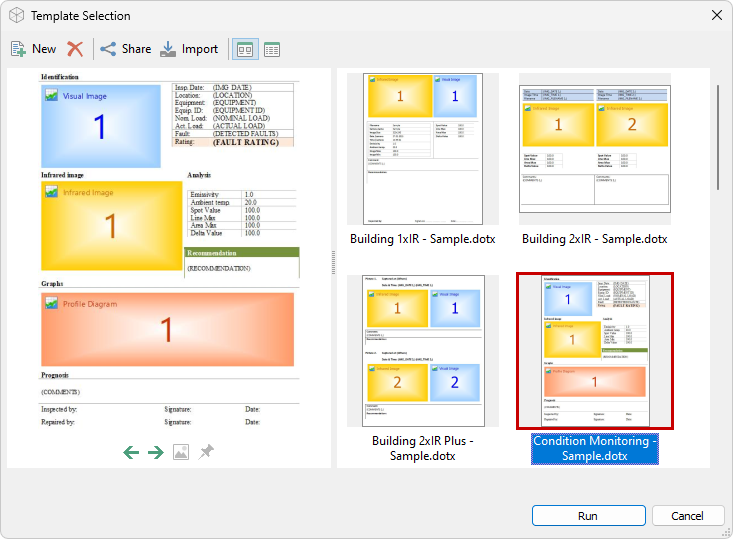
A report template defines the layout of a Microsoft Word report and determines which images, graphs, measurements, notations, and other data appear in it. Use a template supplied with IRT Cronista or a custom template. See Report template structure and Managing report templates.
Prepare the report data
Before generating a report, prepare the data required by the selected template. Depending on the template, you may need to link visual images to infrared images, add notations or comments, or analyze the infrared images. You do not need to add data that the template does not use.
Images appear in the report in the current sort order. Arrange them before generating the report. See Sorting files and folders.
You can generate a report for the focused image, selected images, or the current folder. See Generating reports for an image, folder, or selection.
Generate a report for the current folder
This procedure includes every infrared image in the current folder. You can use the Report button  on the main toolbar instead of the menu command.
1.Open the folder that contains the images to report.
2.Select Tools > Create Report for Folder.
3.Select a report template in the Template Selection dialog.
4.To report images in subfolders, select Include images from subfolders if the check box is available.
5.Select Run.
6.Review the generated report in Microsoft Word.
7.Save the document.
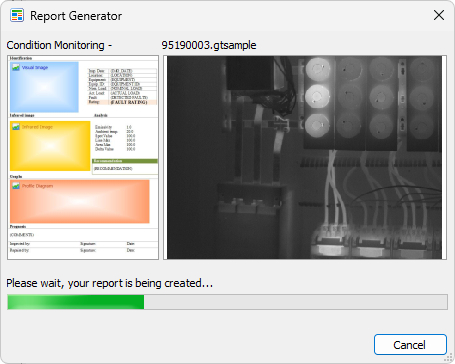
The Report Generator dialog shows progress while IRT Cronista processes the images. When generation is complete, the report opens in Word.