Measurement objects, also commonly called ROIs (regions of interest), identify points, lines, and areas in an infrared image and calculate temperatures for those locations. Use them to document findings, compare values, create graphs, and include analysis results in reports. Each object belongs to one infrared image and is saved with that image's analysis data.
Measurement objects are available in Analyzer mode. To switch to Analyzer mode, click Analyzer on the main toolbar.

Available objects
§Spots. Measure temperature at individual image locations. IRT Cronista can also place spots automatically at the hottest or coldest locations.
§Lines. Measure temperatures along free, horizontal, vertical, or connected line segments and provide data for temperature profiles.
§Areas. Measure temperatures within rectangular, elliptical, or polygonal regions and provide data for histograms.
§Connections. Calculate the temperature difference between two measurement objects.
§Notes and arrows. Add explanatory text and visual pointers. These annotation objects do not measure temperature.
Create an object
The analysis toolbar contains tools for selecting, placing, and deleting objects. The same commands are available from the Analysis menu.

1.Click the infrared image to give it focus.
2.Select the required placement tool on the analysis toolbar or from the Analysis menu.
3.Click or draw on the infrared image as required by the selected tool.
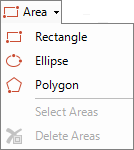
A grouped toolbar button provides several object types or commands. Click the arrow beside the button to open its menu. For example, the Area menu contains Rectangle, Ellipse, and Polygon.
Active and selected objects
The active object is the primary object for commands that require one object. It is also selected. Other objects can be selected at the same time, but only one object in the focused image can be active.
The following image shows the three object states:
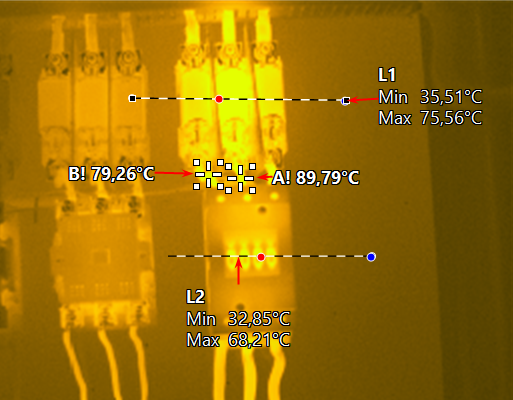
§L1 is active and selected. It has black handles.
§Spots A and B are selected but not active. White handles surround them.
§L2 is not selected and has no handles.
Use the Selection Tool to select objects. Click an object to select it and make it active. Click a blank part of the infrared image to clear the object selection. See Selection tool.
The Properties window displays the active object's properties. When no object is active, it displays the focused image's properties. Commands that support multiple objects apply to all selected objects.
Delete measurement objects
1.Select the objects to delete.
2.Click the delete button  on the analysis toolbar, or press Delete.
To delete objects by type, open Analysis > Delete and select All Spots, All Lines, All Areas, or All Notes. Select All Objects to remove every object from the focused image.