Report settings control how IRT Cronista places new report data sections. They also set the format and resolution of images exported to Word. Select Settings on the Thermo Reports tab.
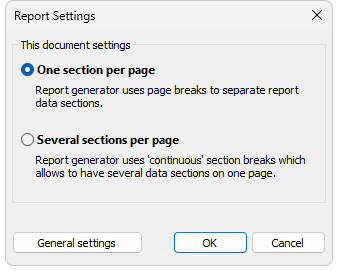
Set section placement
Under This document settings, select one of the following options:
·One section per page: Uses page breaks so that each new report data section starts on a new page.
·Several sections per page: Uses continuous section breaks so that consecutive report data sections can share a page when they fit.
Select OK to save the setting in the current document.
The setting applies when report generation adds data sections and when you select Duplicate on the Thermo Reports tab. It does not rearrange existing sections. When you save the setting in a report template, reports generated from that template use the selected section placement. For an explanation of report data sections, see Report template structure.
Set image export format and resolution
Select General settings in the Report Settings dialog.
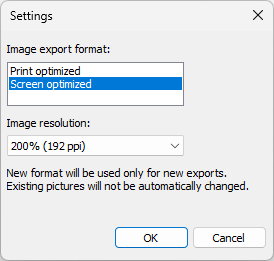
1.Under Image export format, select Print optimized to keep text and image overlays in a vector format, or select Screen optimized for raster image output.
2.Under Image resolution, select the resolution for exported report images.
3.Select OK.
Select Same as display to use the current display resolution. A higher resolution can improve image detail but increases the report file size.
Note: Image export settings are program-wide and are also available under Tools > Settings. They apply only to images exported after the change. Existing report images are not converted or resized automatically. |