Use the Report Templates dialog to create, edit, copy, rename, delete, import, or share report templates. Select Tools > Report Templates to open it.
The preview pane shows the layout of the selected template. Select the Thumbnails or Details toolbar button to change how the template list is displayed.
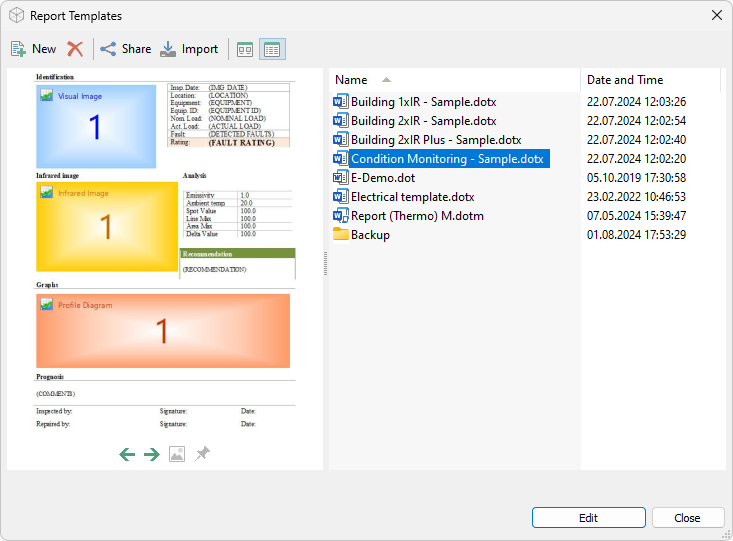
Edit a template
1.Select the template.
2.Select Edit.
3.Make the required changes in Microsoft Word.
4.Save the template in Word.
5.Close the template.
You can also double-click an editable template to open it. For information about designing the document, see Report template structure and the Thermo Reports tab.
Create a template
1.Select New on the toolbar.
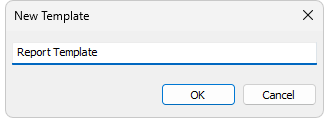
2.Enter a template name in the New Template dialog.
3.Select OK.
4.Edit the starter template in Word.
5.Save the template in Word.
6.Close the template.
Copy a template
Copy a template to reuse its design without changing the original.
1.Select the template.
2.Press Ctrl+C.
3.Press Ctrl+V.
A copy is added to the template list.
Import templates
Import one or more Microsoft Word template files with a .dot, .dotx, or .dotm extension. Extract the files first if they are in a compressed archive.
1.Select Import on the toolbar.
2.Select the template files.
3.Select Open.
Share or export a template
1.Select the template.
2.Select Share on the toolbar.
3.Select Send By Email or Save As.
4.Complete the email or save operation.
Rename a template
1.Select the template.
2.Press F2.
3.Enter the new name.
4.Press Enter.
Delete a template
1.Select the template.
2.Select Delete on the toolbar.
3.Confirm the deletion if prompted.
Deleted templates are moved to the Windows Recycle Bin.
Most users should use only the shared templates - the templates you see when you open the Report Templates dialog. Folder-local templates remain available for advanced workflows and backward compatibility. Create them in Organizer mode by selecting New > Templates for Folder. When the current folder contains local templates, the Report Templates dialog displays the All Templates, Only Local, and Only Shared tabs. All Templates combines the shared and applicable local templates, Only Local shows the current folder's local templates, and Only Shared shows templates available to all folders. When the folder has no local templates, the tabs are hidden and only shared templates are available.